
A failing hard drive can feel like a digital countdown. Errors creep in, performance slows, and the looming threat of data loss hangs heavy. Fortunately, Windows offers a powerful, built-in tool to diagnose and potentially repair these issues: Check Disk, or chkdsk.
Accessing this utility requires a simple command-line maneuver. Type "cmd" into the Windows search bar, then right-click on the result and select "Run as administrator." This grants chkdsk the necessary permissions to thoroughly examine your drive.
The core command is deceptively straightforward: `chkdsk C: /f /r`. Replace "C:" with the drive letter you wish to inspect. The `/f` flag instructs chkdsk to fix any errors it encounters, while `/r` goes further, actively locating bad sectors – the physical blemishes on the drive – and attempting to recover any readable data.
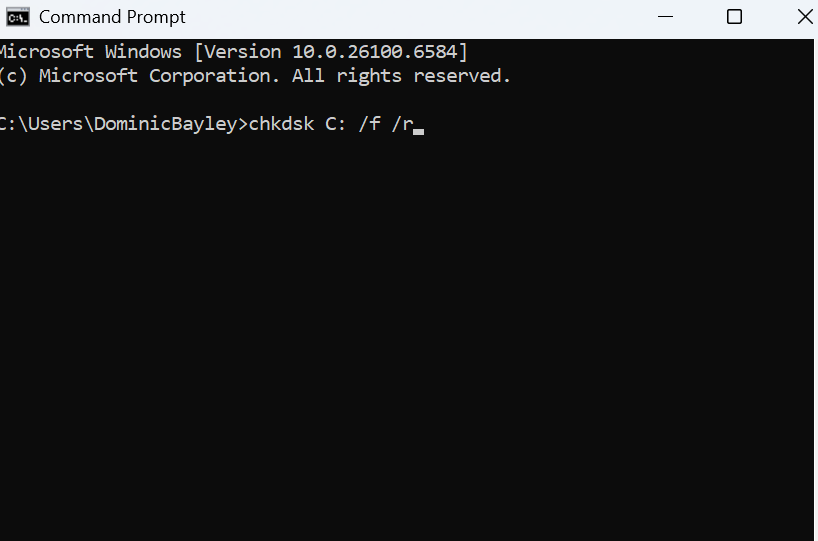
If the drive is currently in use (which is often the case with your primary system drive), Windows will likely prompt you to schedule the check for the next restart. Simply type "Y" to confirm, and the scan will run before Windows fully loads.
Once the scan completes, chkdsk delivers a detailed report. This report reveals whether bad sectors were discovered and, crucially, whether they were successfully repaired. It’s a vital snapshot of your drive’s health.
However, a critical caveat exists. While chkdsk is a powerful tool, it isn’t infallible. It may encounter bad sectors beyond repair, and the process of attempting fixes can sometimes destabilize data. Therefore, a comprehensive backup of your important files *before* running chkdsk is absolutely essential.
Think of it as a digital safety net. A backup ensures that even if chkdsk encounters unrecoverable errors, your precious data remains secure and accessible. Proactive data protection is the best defense against the anxieties of a failing hard drive.


